Set Up Your AI Receptionist with ChatGPT or a Compatible AI Assistant
Connect KestrelVoice to the AI assistant you already use — describe your business, review suggested settings, and approve every configuration change before it applies.
The model in one paragraph
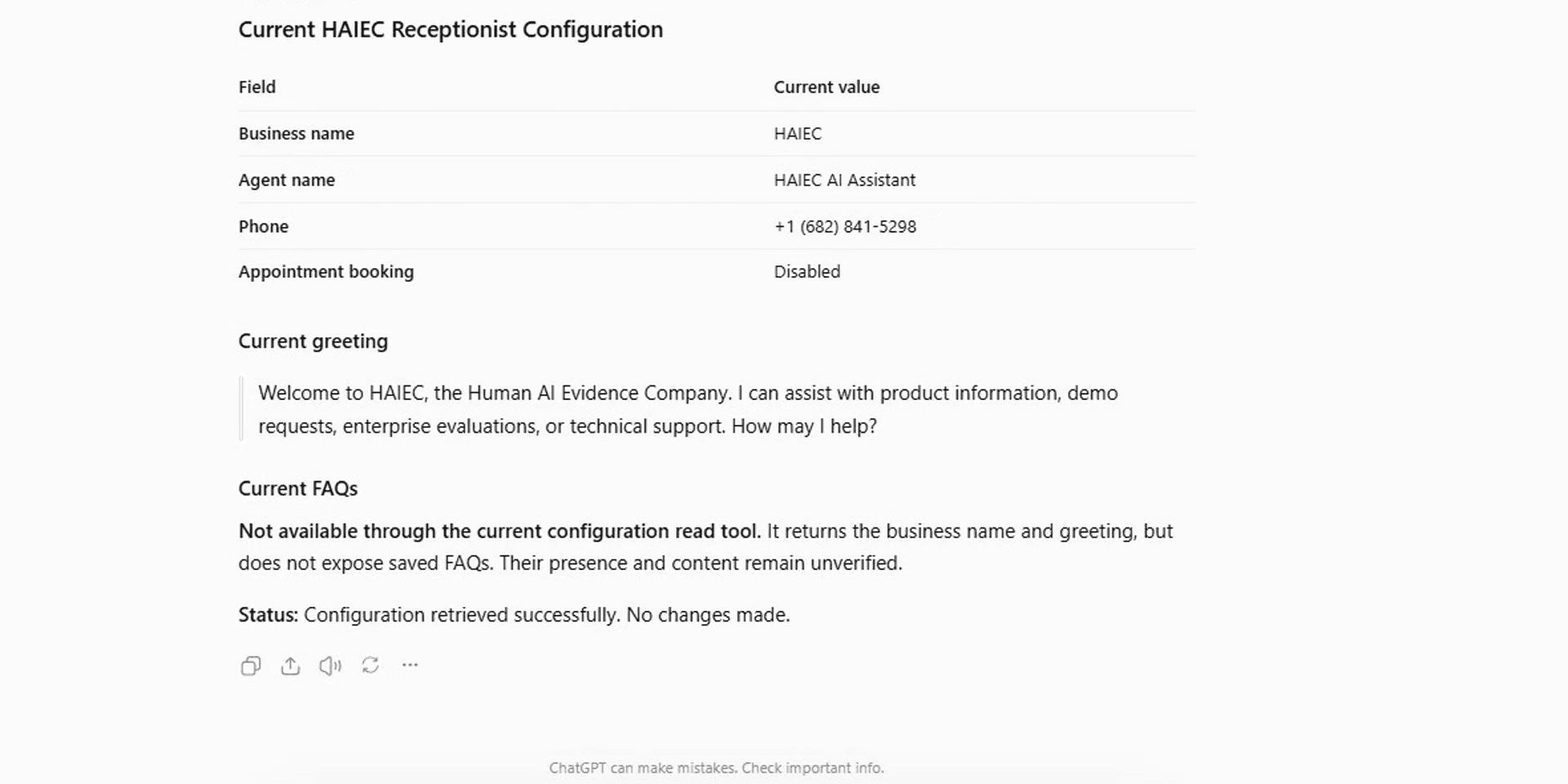
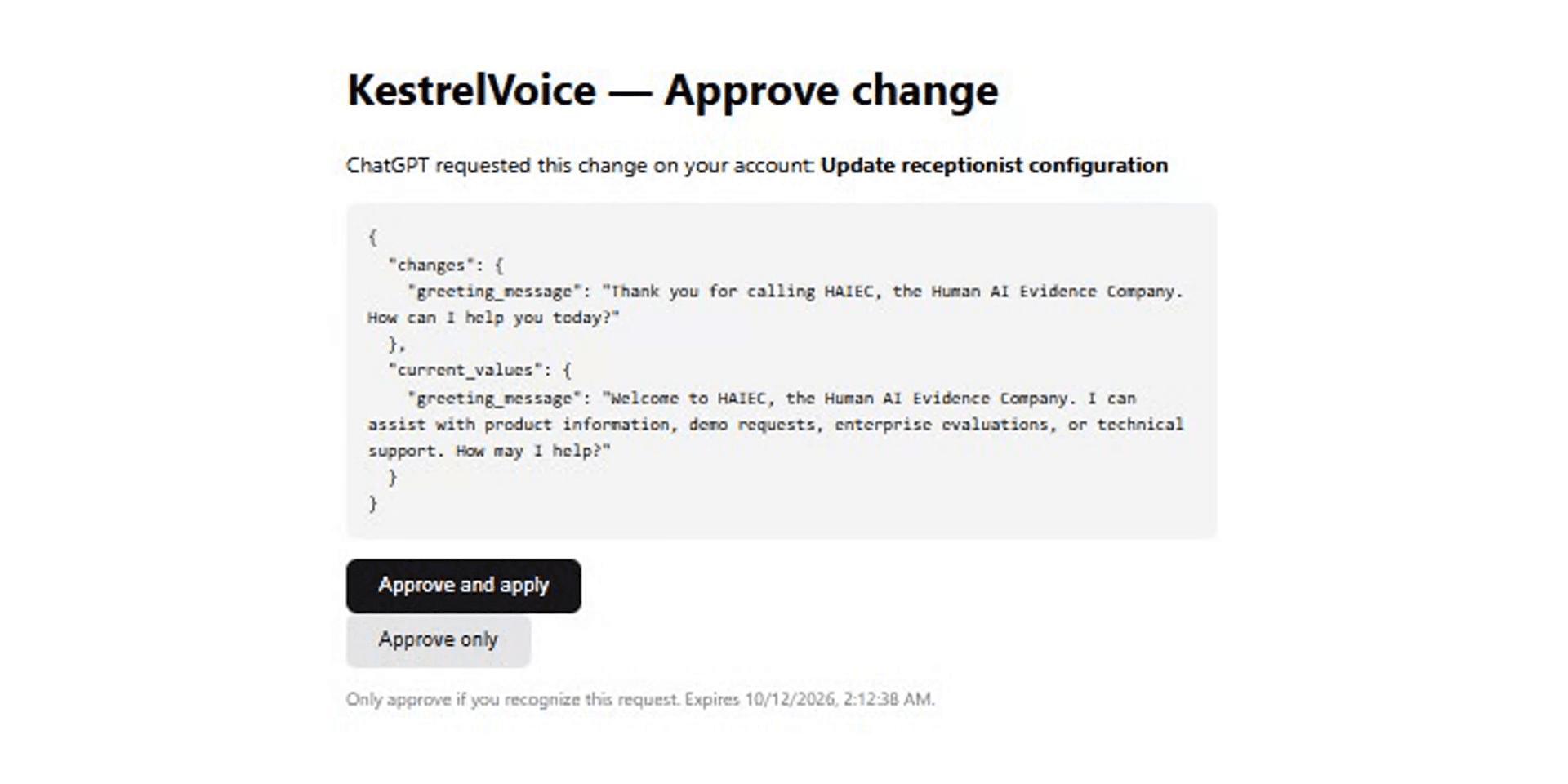
Your AI assistant talks to KestrelVoice over a secure OAuth connection at https://kestrelvoice.com/api/mcp. It can read your status and prepare changes — but every change to your configuration produces an exact diff that only you can approve while signed in. Approval links expire, and the durable record of what was approved and applied lives in your dashboard under AI Approvals.
ChatGPT
App submitted — listing under review- Open the Kestrel Voice app inside ChatGPT and choose Connect.
- ChatGPT sends you to KestrelVoice — sign in with Google OAuth using the account that owns your workspace.
- Grant the requested scopes (
mcp:readto read status,mcp:writeto prepare changes). - Ask ChatGPT to read your configuration or prepare a change.
Claude
Setup guidance — not yet verified end-to-endKestrelVoice implements standard OAuth 2.1 discovery, dynamic client registration and PKCE, so standards-compliant remote MCP clients should connect. Claude's flow has not been verified end-to-end yet — follow these steps and report any issue.
Individual account
- Go to Customize → Connectors → Add custom connector.
- Name it “Kestrel Voice” and paste the remote MCP URL.
- Complete OAuth sign-in when prompted.
Team / Enterprise
- An organization owner adds the connector under Admin → Connectors.
- Each member still authorizes their own KestrelVoice account — access is per-user and per-workspace.
Other MCP clients
Any client supporting remote Streamable HTTP MCP with OAuth can connect using the same URL. Only the ChatGPT connection is verified today; Cursor, Claude Code and similar clients are unverified setup guidance.
Remote MCP server URL
https://kestrelvoice.com/api/mcpAuthentication: OAuth 2.1 + PKCE with dynamic client registration. Never paste a KestrelVoice API key or OAuth access token into a chat client.
What it can and can't do today
Supported
- Read account, subscription, onboarding and readiness status
- Read your saved receptionist configuration
- Analyze your business website into a reviewable draft (extracted content is untrusted until you approve it)
- Preview receptionist changes as an exact diff with an approval link
- Preview and configure existing workflow templates
- Check phone number, E911 and inbound-call readiness
- Search available US numbers and save an area-code or exact-number preference before checkout
- Retrieve your website-chat embed snippet
Not supported
- Place or receive live phone calls from the assistant
- Purchase phone numbers, start checkout, or charge your account
- Access another customer’s workspace
- Apply any configuration change without your explicit approval
Calls, leads, voice selection and usage tools are planned for v2 — the assistant will honestly decline them today.
The approval lifecycle
Preview
The assistant prepares an exact diff — current value vs proposed value — and a time-limited approval link. A durable preview record is saved for audit; no configuration changes.
Human approval
You open the link while signed in. Only the team member who made the request can approve it.
Apply
Approve & apply on the page, or return to the assistant to retry — either path requires the durable approval.
Verified record
The applied result is recorded against the action and visible in AI Approvals, alongside failed and expired requests.
Troubleshooting
The assistant says it can’t see my account▼
My approval link expired▼
The assistant prepared a change but won’t apply it▼
A change shows "needs review"▼
Every change needs a human
Your assistant drafts; you decide. See the workflow end-to-end in the demo.